
Verity Mod Not Working? Fix Java, Bedrock, Voice & Connection Errors
When Verity stops responding, the fastest fix is usually to separate the edition, game version, loader, dependencies and connection path. Use this guide to isolate one failure at a time instead of replacing several files at once.
Troubleshooting paths and version facts checked August 22, 2026. Stable Java baseline: Verity JE 5.7.4 for Minecraft 1.20.1 and Forge; 6.0.0-beta.7 is a separate preview.
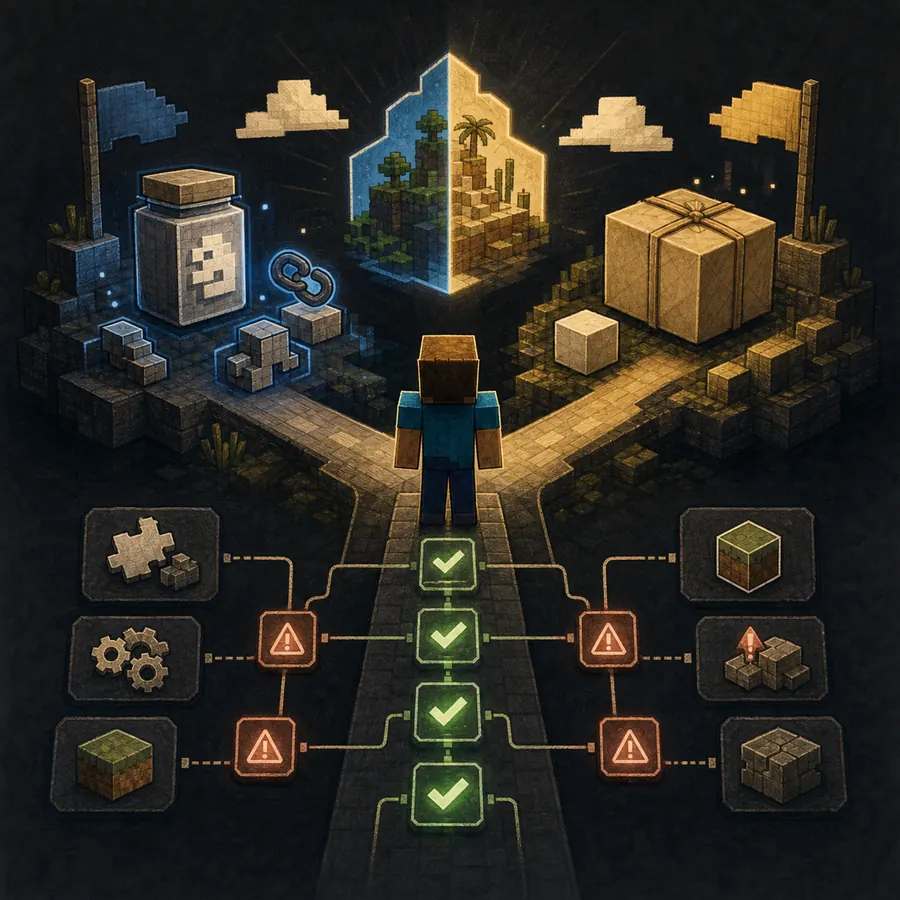
The short answer: start with one clean baseline
If the Verity Mod is not working, do not begin by downloading another similarly named file. First identify whether you are using Java Edition or Bedrock, then write down the Minecraft build, Verity release, loader or add-on format, dependency versions and the first useful error. Java players should begin with the stable Verity JE 5.7.4 file for Minecraft 1.20.1 and Forge. The newer 6.0.0-beta.7 file is a preview, not a reason to call the stable file broken.
Bedrock players need a separate project record because Verity BE and Verity - Bedrock Edition are different add-ons. If you are not sure which file you downloaded, return to the Verity Mod download center and compare the author, Project ID, extension and supported build before changing your world. A clean record makes the next check meaningful and keeps advice from one project from being mixed into another.
- Edition: Minecraft Java Edition or Bedrock / MCPE
- Minecraft version and platform: stable build, Preview, Windows, Android or iOS
- Verity file name and release: stable 5.7.4, a beta, or a Bedrock add-on
- Loader and dependencies: Forge, GeckoLib and YACL for the Java path
- The first error message, not only the final crash screen
| Symptom | First likely cause | Best next check |
|---|---|---|
| Minecraft crashes at launch | Wrong loader, game version or missing dependency | Open the Java requirements guide and compare the profile |
| Bedrock imports but nothing appears | Pack activation, experiment or build mismatch | Use the Bedrock installation steps in a new test world |
| Verity appears but does not answer | Connection, backend or project-specific command | Check the selected project's instructions and the connection section below |
| Verity cannot hear you | Microphone permission, input device or speech path | Use the voice guide before changing the mod file |
Java: fix crashes, missing dependencies and connection failures
The Java troubleshooting path should stay narrow. Create a fresh Forge 1.20.1 instance, install the stable Verity JE 5.7.4 JAR, and add only the dependencies named by the current project record. Do not place a Java JAR into a Fabric, NeoForge or Bedrock installation. If the game crashes before the title screen, remove unrelated mods from the test profile and read the first `Caused by` or missing-mod line in the log instead of guessing from the last stack trace.
A connection failure is a different class of problem from a loader crash. Once Minecraft reaches the world, test the text interaction or the project's documented connection command before testing microphone and text-to-speech. If the Java page still shows a valid version and dependencies, follow the Java installation guide and record whether the failure is `connection refused`, an empty response, a permission error or a timeout. Those details tell you whether the problem is local setup or a remote service.
- Confirm the profile says Minecraft 1.20.1 and Forge, not Fabric or a different loader.
- Confirm the file is `verity-5.7.4.jar` when using the stable baseline and that the SHA-1 matches the published record.
- Keep GeckoLib and YACL in compatible versions and avoid adding a second copy of either dependency.
- Test with a new world and no unrelated performance, shader or voice mods.
- Save the first useful log line before reinstalling; it is evidence for the next decision.
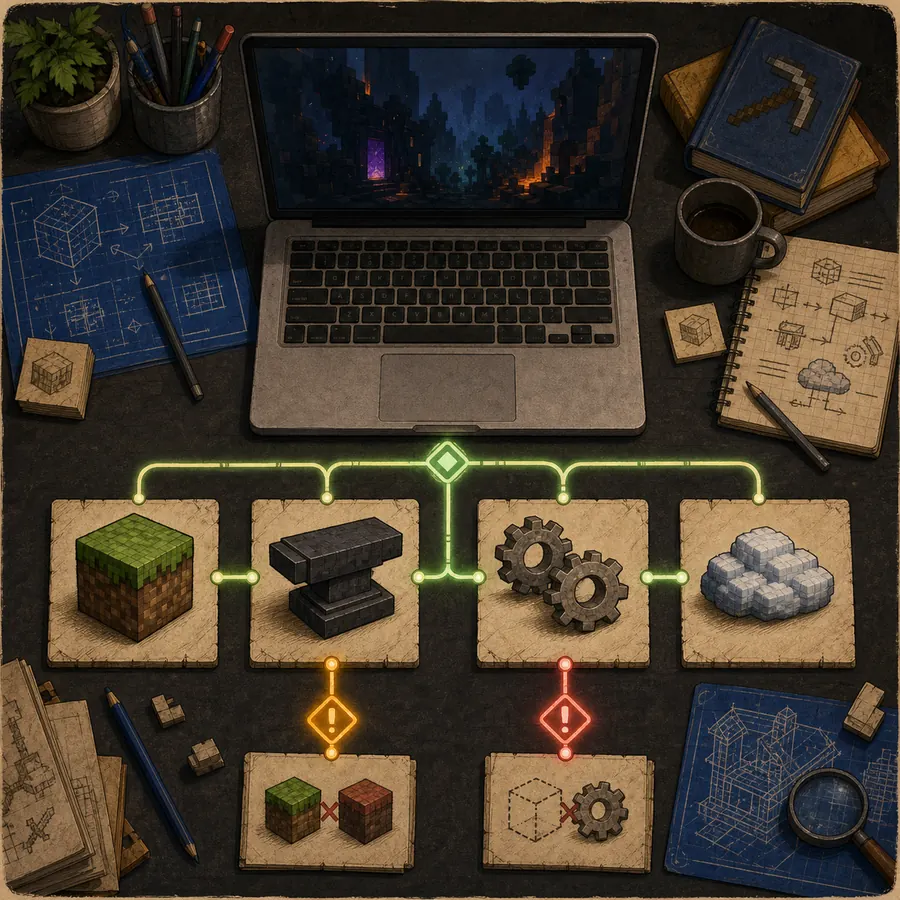
Bedrock: import succeeds but Verity does not respond
A successful MCADDON import only means Minecraft unpacked the file. It does not prove that the behavior pack and resource pack are active in your world. Use one identified Bedrock project at a time, create a new test world, activate the packs named by that project and enable only the required experimental features. The current CurseForge pages show separate Verity projects and a Bedrock 26.40 file generation, so do not copy commands or packs between them.
If Verity appears but answers with silence or three dots, check the exact project instructions and connection state before importing a second add-on. An older pack can remain active after an update, and Preview builds can behave differently from the stable Bedrock version. The Bedrock comparison page is the right place to confirm the author and Project ID; the Bedrock install guide explains the import and activation order.
- Keep the original MCADDON filename and do not extract or rename individual packs.
- Verify that both behavior and resource packs are present and active in the test world.
- Use the Bedrock build named by the selected project; do not assume Preview and stable are interchangeable.
- Enable Beta APIs or another experiment only when the project documentation requires it.
- Deactivate an older copy before importing an update if Minecraft reports duplicate packs.
| Bedrock result | What it usually means | Action |
|---|---|---|
| Import failed | Incomplete file, wrong file handler or stale package | Redownload the complete package from the identified project page |
| Pack is missing | Only one part of the add-on was imported | Check the resource and behavior pack lists |
| Verity is visible but silent | Experiment, command or backend path is incomplete | Follow the selected project's current setup instructions |
| World behaves unexpectedly | Pack conflict or unsafe test world | Stop, restore the backup and isolate the add-on in a new world |
Voice, speech-to-text and TTS checks
The query `mic not working verity mod` is usually an audio-path problem, not proof that the download is wrong. Start with the operating system input meter, then check Minecraft's selected microphone, permission prompt and push-to-talk control. Test the microphone with a short spoken phrase before turning on text-to-speech. If Verity can speak but cannot hear you, the output path is healthy while the input or speech-recognition path is not.
Keep three systems separate: the Minecraft mod, speech recognition and the AI or TTS service. A muted device, an unavailable local model, a blocked network request and a missing project command can all look like the same silent response. Use the How to Talk to Verity guide for microphone setup, then return here if the voice issue is part of a larger Java, Bedrock or connection failure.
- Check the system input meter and choose the physical microphone you are actually using.
- Allow Minecraft or the launcher to access the microphone and verify push-to-talk is not held on the wrong key.
- Test text input before TTS so you know whether the failure is recognition, AI response or audio output.
- If using Ollama or another local service, confirm it is running and that the selected model is available.
- Do not paste private API keys into screenshots, logs or support posts.

Connection, multiplayer and backend checks
When the mod loads but the conversation fails, classify the problem before changing versions. A local connection error can come from a service that is not running, a blocked port, a wrong endpoint or a missing setup command. In multiplayer, the server and every client also need compatible Minecraft, Forge, Verity and dependency versions. The multiplayer guide covers the shared baseline; do not use a Bedrock connection command in a Java profile or the reverse.
Run one controlled test: a fresh profile, a new world, the verified edition and only the selected project. Test a simple text exchange, note the exact response, then test voice. If the same file works locally but not on a server, compare server logs, firewall rules and the host's supported loader before replacing the client file. This order prevents a networking issue from becoming a second installation issue.
- Test local text interaction before multiplayer or voice.
- Compare the server and all clients for the same game, loader, Verity and dependency versions.
- Check whether a remote AI/backend endpoint is online and whether the project requires a current command.
- Review firewall, host and port errors without publishing credentials.
- Keep a working local baseline so you can tell whether the server introduced the failure.
Safe reset and update workflow
A reset is useful only when it is controlled. Back up an important world, duplicate the instance or test world, remove the old pack or JAR according to the project's instructions, and install one verified release. Do not delete the only copy of a save or overwrite a working profile before you know whether the new version is stable. The download safety checklist explains why the source, Project ID, filename and hash matter together.
For the current Java baseline, use stable Verity JE 5.7.4 for Minecraft 1.20.1 and Forge. Modrinth also lists 6.0.0-beta.7, published August 19, 2026, but beta behavior should be recorded as a separate experiment. When a problem begins after an update, compare the old and new release records, revert to the known-good baseline, and change one variable at a time.
- Back up worlds and copy the working profile before an update.
- Keep stable and beta files in separate profiles so their logs cannot be confused.
- Remove duplicate Java dependencies or Bedrock packs before testing an update.
- Record the version, filename, hash, loader, platform and first error.
- Return to the publisher's current release record when Minecraft changes.
What to record before asking for help
A useful troubleshooting report is short but reproducible. State the edition, Minecraft build, Verity version, loader or Bedrock project, platform, dependencies, world type and the step that failed. Include the first relevant error or exact in-game message, not a private token or a full unfiltered log. If the issue is voice-related, add whether the operating system input meter moved and whether text chat worked first.
If the problem involves a downloaded file, include the source page and filename rather than linking to an anonymous mirror. If the problem started after an update, say which release worked before and which one fails now. This record helps distinguish a wrong file from a missing dependency, a disabled experiment, a microphone permission issue or an unavailable backend.
- Edition and platform
- Minecraft version, loader and Verity release
- Author or Project ID for a Bedrock add-on
- Exact first error and the step that produced it
- Whether a clean profile or test world changed the result
Why replacing every file at once makes troubleshooting harder
Changing the loader, Verity file, dependencies, world, voice service and server together removes the comparison point. A clean baseline is not busywork: it tells you which layer is healthy. Make the smallest test that can answer the next question, keep the result, and only then move to the next layer.
This page intentionally separates download identity from behavior. A file can be the correct published file and still fail because the profile uses the wrong loader, a Bedrock pack is inactive, a microphone is blocked or a remote service is unavailable. That distinction keeps the fix honest and avoids promising that one download works on every edition.
Limits of this troubleshooting guide
Verity projects, Minecraft builds, dependencies and remote AI services can change after the checked date. This page does not guarantee that a future release will work, that a community backend will remain online or that any file is harmless simply because its name is familiar. Use the publisher's current project record and keep a backup before testing.
If an error points to a third-party launcher, host, operating-system permission or network provider, follow that service's current documentation as well. Keep private credentials out of public reports and prefer a fresh test world until the configuration is stable.
Verity Mod troubleshooting FAQ
Why is my Verity Mod not working?
Start by checking the edition, Minecraft version, loader, Verity file, dependencies and first error. Java and Bedrock use different files, and a loaded mod can still fail because of a connection, permission or backend problem.
Why does Verity crash Minecraft on startup?
The usual first checks are the Forge and Minecraft versions, missing GeckoLib or YACL, duplicate dependencies and unrelated mods in the profile. Test the stable Verity JE 5.7.4 baseline in a clean Forge 1.20.1 instance.
Why does Bedrock import Verity but show no behavior?
Import does not activate every pack. Confirm the behavior and resource packs are enabled in a new world, use the selected project's required experiments and do not mix files from separate Bedrock projects.
Why can Verity speak but not hear my microphone?
Check the operating-system input meter, Minecraft permission, selected microphone and push-to-talk control. Test text input before TTS and use the voice guide to separate recognition, AI response and audio output.
Is Verity JE 6.0.0-beta.7 the current stable version?
No. The verified stable baseline is Verity JE 5.7.4 for Minecraft 1.20.1 and Forge. Modrinth lists 6.0.0-beta.7 as a separate preview published August 19, 2026.
Can I use the Java troubleshooting steps for Bedrock?
Only the general isolation method carries over. Java JARs, Forge and GeckoLib/YACL do not install on Bedrock; use the Bedrock project's author, Project ID, MCADDON and experiment instructions instead.
Why does the Verity connection fail after installation?
A connection failure can come from a missing setup command, unavailable remote service, blocked port, wrong endpoint or multiplayer mismatch. Test a clean local text interaction before adding voice or a server.
Should I download another Verity file when the first one fails?
Not immediately. Record the current file and error, return to the publisher's project page, verify the edition and release, then change one variable in a backup profile or test world.
Version and project sources
- Verity JE version list on Modrinth — Use the publisher's version record to distinguish stable 5.7.4 from the 6.0.0-beta.7 preview.
- Verity JE version metadata — Provides release dates, loaders, file names, sizes and published hashes.
- Verity BE project on CurseForge — Check the current Bedrock file, project identity and setup notes before importing.
- Verity - Bedrock Edition project on CurseForge — A separate Bedrock implementation with its own author, files and instructions.