
Verity Mod Ollama Setup: Local AI on Minecraft
This Verity Mod Ollama setup explains how to connect a Java installation to a model running on your own computer, how the stable 5.7.4 gateway path differs from the current 6.0.0 release, and how to test each service before changing Minecraft files.
Project release records and Ollama CLI documentation checked November 16, 2026. Verity JE 6.0.0 is the latest listed release; the 5.7.4 LiteLLM path is retained as a clearly marked legacy branch.
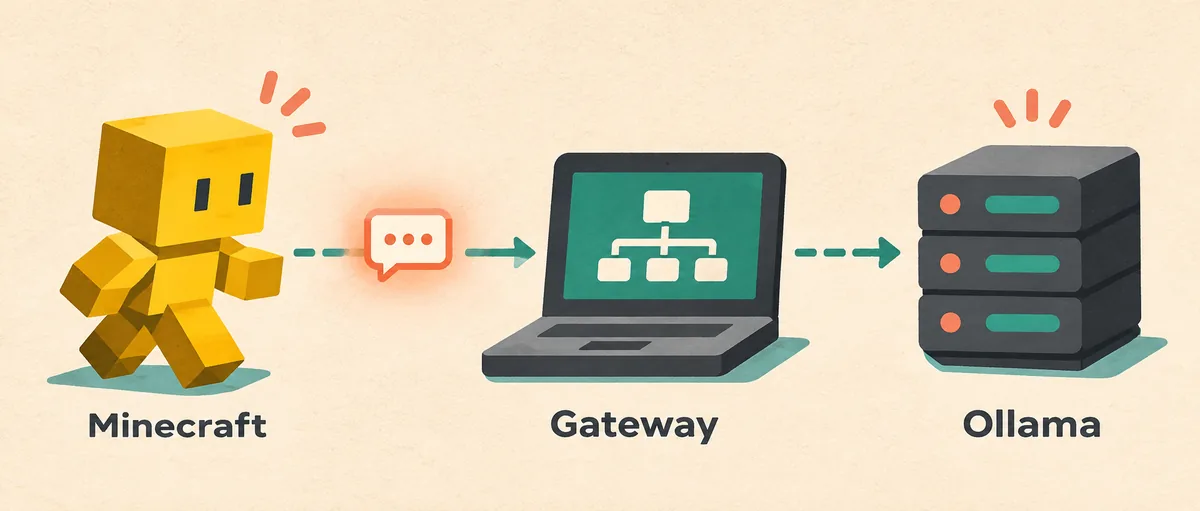
The short answer: separate Minecraft, the gateway and Ollama
A Verity Mod Ollama setup is a chain of services, not a single download. Minecraft runs Verity, Verity sends a chat request to the address in its Local LLM settings, a gateway may translate that request, and Ollama loads the model that writes the reply. If you test all of those layers at once, a missing model, a closed port and a wrong mod version look identical. Test one layer at a time.
Start with the current Java project record. Modrinth lists Verity JE 6.0.0 for Minecraft 1.20.1 and Forge, published October 23, 2026, with a 256,881,551-byte JAR. Its changelog says local AI handling changed, so do not paste the older 5.7.4 LiteLLM fields into a 6.0.0 profile without reading the installed release settings. The legacy 5.7.4 route is documented below only for players who deliberately remain on that file.
This page is about local text generation. It does not promise that microphone recognition, text-to-speech, a multiplayer server or every horror event becomes offline. Those are separate paths with their own permissions, models, providers and network requirements. For a voice problem, continue to the microphone and voice guide; for a crash or edition mismatch, use the cross-edition troubleshooting guide.
- Minecraft Java Edition, the Verity JAR and its loader must work before local AI is tested.
- Ollama must be running and must have the exact model tag that Verity requests.
- A gateway is required only when the installed release documents one; 6.0.0 and 5.7.4 are not interchangeable.
- Keep API keys, server addresses and private logs out of screenshots and public support posts.
Check the Java version and hardware first
Before installing Ollama, open the Verity Java requirements page and record the Minecraft version, loader, Verity release and dependency set. The current Modrinth API record is Verity JE 6.0.0, Minecraft 1.20.1 and Forge. The older 5.7.4 file is still listed, but it is a historical release with a different local AI workflow. A clean profile makes it possible to tell an AI configuration error from a loader error.
Local inference shares memory and compute with Minecraft. Eight gigabytes of system RAM can be enough for a very small model, but 16 GB gives the game and model more room. A dedicated GPU can reduce response time, while a CPU-only setup may work slowly or pause the game during generation. Storage also matters: model files remain on disk after the first pull and can be several gigabytes. These are practical planning ranges, not a promise that a particular model will perform well.
Choose a small model for the first test. The goal is a short text reply, not the smartest possible character performance. Once the chain works, change one model variable at a time and record the result. Never use model size as a reason to expose Ollama to the public internet. A loopback address such as 127.0.0.1 keeps the first test on the same computer.
| Check | Why it matters | Record |
|---|---|---|
| Minecraft and Forge | The local service cannot repair a loader crash | 1.20.1 and the installed Forge profile |
| Verity release | 6.0.0 changed local AI handling; 5.7.4 has a legacy gateway path | Version and file name from Modrinth |
| Memory and GPU | The model competes with the game for resources | RAM, GPU, free storage and model tag |
| Network scope | Remote binding can expose an unauthenticated service | Loopback URL for the first test |
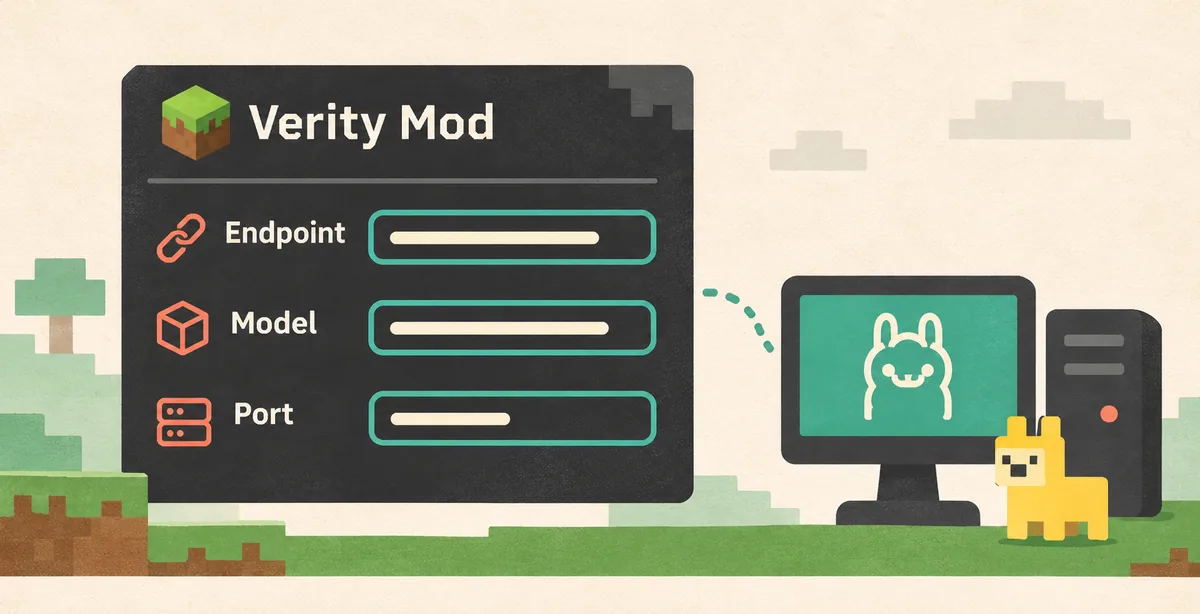
Install Ollama and verify a model
Install Ollama from its official download page for Windows, macOS or Linux. Avoid repackaged installers that claim to include a special Verity model. The official CLI reference documents `ollama run`; use the commands supported by your installed version rather than copying a command from an unrelated video. Reopen the terminal after installation if the command is not found.
Pull one small model and write down the exact tag shown by `ollama list`. A tag such as `qwen2.5:1.5b` is different from `qwen2.5`, `qwen3` or a community name. The exact spelling is part of the connection contract. Run the model directly before opening Minecraft. If Ollama cannot answer its own test, Verity cannot be the first place you debug.
On a desktop installation Ollama may run as a background application. If the service is not listening, start it with the platform's documented command, commonly `ollama serve`, in a separate terminal. Keep that terminal open for the test and do not start a second copy on the same port. A browser response from port 11434 only proves that something answered; the model list and a generated reply are stronger checks.
- Install Ollama from the official download page.
- Run `ollama pull MODEL_TAG`, then confirm the same tag with `ollama list`.
- Run `ollama run MODEL_TAG` with a short greeting and keep the result as a baseline.
- If the CLI cannot connect, start the local service and resolve that error before configuring Verity.
- Keep the listener on loopback for the first setup; remote access needs a separate security review.
Use the correct configuration branch for your Verity release
The current 6.0.0 release is the first choice for a new installation, but the official version record only says that local AI usage changed; it does not provide a universal set of field names for every build. Open the installed Verity configuration and read the Local LLM or AI Settings labels that actually exist. Select the documented Ollama provider, enter the exact model tag, save, and reopen the screen to confirm the values. Do not infer a beta setting from a 5.7.4 tutorial.
Players who intentionally use stable 5.7.4 should follow the legacy path reported by the project tutorial: Ollama listens on port 11434, LiteLLM listens on loopback port 4000, and Verity points to the LiteLLM OpenAI-compatible path. The model name in the gateway uses the `ollama/` provider prefix, while Ollama's own model list does not. That distinction is the most common reason for a model-not-found message on the old branch.
For the legacy branch, start with a command shaped like `litellm --model ollama/MODEL_TAG --api_base http://127.0.0.1:11434 --host 127.0.0.1 --port 4000`, then use the exact URL and model field documented by the installed 5.7.4 config. Treat this as a version-bound example, not a promise that 6.0.0 still needs LiteLLM. If the current release offers a direct Ollama endpoint, prefer that documented path and remove the unused proxy from the test.
| Release branch | Local service path | What to avoid |
|---|---|---|
| Verity JE 6.0.0 | Read the installed Local LLM / AI Settings fields and use its documented Ollama path | Copying 5.7.4 LiteLLM values into 6.0.0 |
| Verity JE 5.7.4 | Ollama 11434 plus the documented LiteLLM loopback gateway on 4000 | Using an Ollama tag without the gateway provider prefix |
| Any beta or community fork | Use that project's own release notes and config labels | Calling a tutorial universal because it contains the Verity name |
Test one message before adding voice or multiplayer
After saving the configuration, create a new test world or use a disposable profile. Type one short message through Verity's documented text interaction. A successful response proves only that the text path worked for that release and model; it does not prove that voice recognition, TTS, a server or an established save will work. Keep the first prompt simple so latency and error output are easy to compare.
If the reply arrives, write down the release, model tag, endpoint, ports, response time and whether Ollama used the GPU. This record becomes your known-good baseline. Test a second message only after the first succeeds. Then, and only then, add a voice service or move the profile to a private server. The Java installation guide covers the mod and dependency layer; this page covers the local AI layer that sits above it.
If the game freezes during generation, stop the test rather than repeatedly clicking the keybind. Reduce the model size, close competing applications, or return to the cloud provider documented by the project. A local model can be private and still be too heavy for the same computer to run smoothly.
- Use a fresh world and a single text request.
- Check the Ollama terminal or service log for the same timestamp.
- Record the model tag, endpoint, release and response time.
- Add voice, TTS or multiplayer only after the text baseline is repeatable.
Troubleshoot connection, model and performance errors
Connection refused usually means the service or gateway is not listening at the configured address. Confirm Ollama first, then the gateway if your release requires one. A port can be open while the wrong process owns it, so compare the listener with the endpoint in Verity. Do not solve a local connection error by binding to 0.0.0.0 or forwarding a port before you understand the security impact.
Model not found means the requested string does not match the installed tag or the gateway provider prefix is wrong. Copy the value from `ollama list`, compare it character by character, and test the model directly. For the 5.7.4 gateway branch, the proxy model may begin with `ollama/` while the local model tag does not. For 6.0.0, use the field format shown by the installed release instead of assuming that rule still applies.
A timeout or very slow reply usually points to model size, memory pressure, a cold model load or a proxy loop. Let the first request finish once, check the service log, and then try a smaller model. Close shaders, browsers and other AI processes while testing. If the game crashes before the request is sent, return to the Java and dependency checklist; Ollama is not involved in a loader crash.
An empty response after a successful text request belongs to a later layer. Check the installed project's prompt or conversation settings, then test voice separately. Do not paste API keys, local file paths or full server logs into a public issue. Redact secrets and share the release, model, endpoint class and first useful error instead.
| Symptom | Likely layer | Next safe check |
|---|---|---|
| Connection refused | Ollama or LiteLLM is stopped, or the URL is wrong | Test the service directly on its documented local port |
| Model not found | Tag or provider prefix mismatch | Compare `ollama list` with the installed release field |
| Very slow response | Model too large or memory is shared with Minecraft | Try a smaller model and record the change |
| Crash before title screen | Forge, dependency or unrelated mod | Use a clean Java profile before touching AI settings |
| Text works, voice fails | Microphone, speech recognition or TTS | Follow the separate voice guide and keep text baseline |
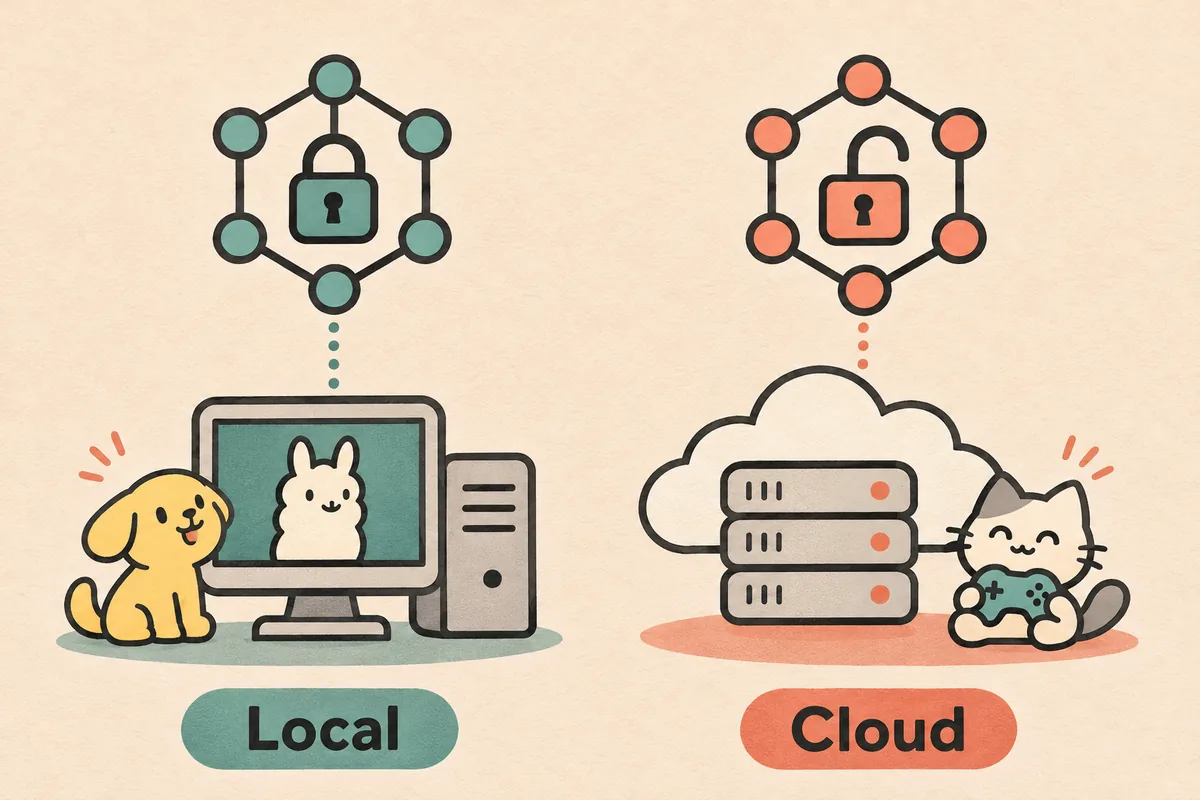
Choose local or cloud AI with a clear boundary
Ollama is useful when you want model inference to stay on your computer and you have enough memory, storage and patience for model management. A cloud provider can be simpler when the machine is modest or the project documents a hosted path more clearly. Neither choice makes the Verity JAR official, guarantees safety, or fixes a mismatched Minecraft installation.
Local inference can reduce the amount of conversation data sent to a provider, but it still creates local logs and may use another service for speech recognition or TTS. Read the current Verity release notes, Ollama terms and any provider documentation before enabling a feature. Keep the first test on loopback, back up important worlds, and remove unused model files when you no longer need them.
When a new Verity release changes its local AI path, do not silently migrate a working profile. Copy the profile, record the old values, test the new release separately and keep the known-good version available until the result is repeatable. The download safety checklist explains how to compare the source, file identity and release record before an update.
- Local: more control and potentially less provider traffic, but higher hardware and maintenance cost.
- Cloud: less local resource use, but an account, key, network and provider policy may be required.
- Voice and TTS can remain separate from the text model in either choice.
- Back up worlds and keep a known-good profile before changing releases.
Optional Kokoro or other TTS services
Some community tutorials combine Ollama with Kokoro or another speech service. Treat that as an optional second project, not part of the minimum Verity Mod Ollama setup. First prove that text generation works. Then install the speech service from its own documentation, record its endpoint, and test it without changing the working text model. A voice failure should not send you back to random JAR downloads.
Different releases may use different endpoint names, ports or audio formats. Verify the installed Verity config and the speech project's current instructions. If text works but speech does not, report the audio layer separately and remove private keys from logs.
- Text baseline first; TTS second.
- Use a separate process and port record for speech.
- Do not call a community video an official compatibility guarantee.
A safe reset when the local setup becomes confusing
A controlled reset is faster than changing every value at once. Copy the Minecraft profile and world, stop Ollama and any gateway, write down the release and model, then start only the services needed for that branch. Remove duplicate model names from the Verity config, restore the documented loopback URL, and run one direct model test before opening Minecraft again.
If the clean profile works, compare it with the old profile one variable at a time. If it fails in the same way, the problem is probably the release, model, service or documented endpoint rather than a world save. Keep the evidence and switch to the project's current support channel when the release notes do not answer the question.
Verity Mod Ollama setup FAQ
Does Verity Mod work with Ollama offline?
Local text generation can run without sending that text request to a cloud model, but voice recognition, TTS, updates and some project features may still need another service. Check the installed release path.
Does Verity JE 6.0.0 use the same LiteLLM setup as 5.7.4?
Do not assume so. Modrinth describes a new local AI method in 6.0.0. Read the fields in the installed release; the port 4000 example is a legacy 5.7.4 branch.
Why does Ollama say the model is not found?
The model tag in Verity does not exactly match the tag installed in Ollama, or the gateway prefix is wrong for that release. Compare the value with `ollama list` and test it directly.
Do I need LiteLLM for every Verity Mod Ollama setup?
No. It belongs to a documented legacy path for some releases. A current release may connect to Ollama directly or use different fields. Follow the installed release notes.
Can I use Ollama on a Verity multiplayer server?
Only when the selected Verity project documents that server arrangement. First make one local client work, then compare server and client releases, endpoints and resource limits in the multiplayer guide.
Why is Verity slow after I enable Ollama?
Minecraft and the model share RAM, GPU and CPU. Try a smaller model, close competing processes, allow the first model load to finish and compare the response time with the local service log.
Does Ollama replace microphone and TTS setup?
No. Ollama handles model inference. Microphone permissions, speech recognition and text-to-speech remain separate layers with separate settings and possible services.
Is a local Verity setup automatically safe?
No. Use a traceable project source, keep services on loopback during testing, protect keys, back up worlds and review the current release record before changing files.
Version and setup sources
- Verity JE versions on Modrinth — Current release records, game version, loader, file names, dates and hashes.
- Modrinth version metadata — Machine-readable release metadata checked for the 6.0.0 and 5.7.4 branches.
- Official Ollama download — Use the first-party installer instead of a repackaged Verity bundle.
- Official Ollama CLI reference — CLI syntax and supported model-running commands.
- LiteLLM proxy CLI documentation — Reference for the legacy gateway command; use it only when the installed release requires a proxy.